
1. Drop in the CSV
Drag the file into the window or choose it. Every row is listed straight away, and each column shows the field it was matched to. Anything the CRM could not match is set to skip, and you pick the right field from a list.


Bring a lead list into TruxCRM from a spreadsheet or the CRM you are leaving. Every row is checked before anything is saved, duplicates are skipped rather than merged, and the leads arrive ready to assign to one agent or share out evenly across the team. Included in the plan.
Every brokerage is sitting on a list somewhere. An export from the last CRM. A spreadsheet of enquiries nobody followed up. A batch from a trade show or a referral partner. Typing them in one at a time is a week nobody has, so the list stays in a folder and the customers on it book with somebody else. Import takes the file as it is, shows you every row before it saves one, and puts the leads straight into the pipeline your agents already work.
Open Leads and click Import. Import is for company admins; agents do not see it.
Drag the file into the window or choose it. Every row is listed straight away, and each column shows the field it was matched to. Anything the CRM could not match is set to skip, and you pick the right field from a list.
Click Check and each row is marked: will import, duplicate, or a problem to fix, with a note saying why. Totals appear at the bottom. Still nothing has been saved.
The button shows the count — Import 10 leads. The leads land in Leads as New, with the source CSV Import. Got it wrong? Undo import removes exactly that import and nothing else.
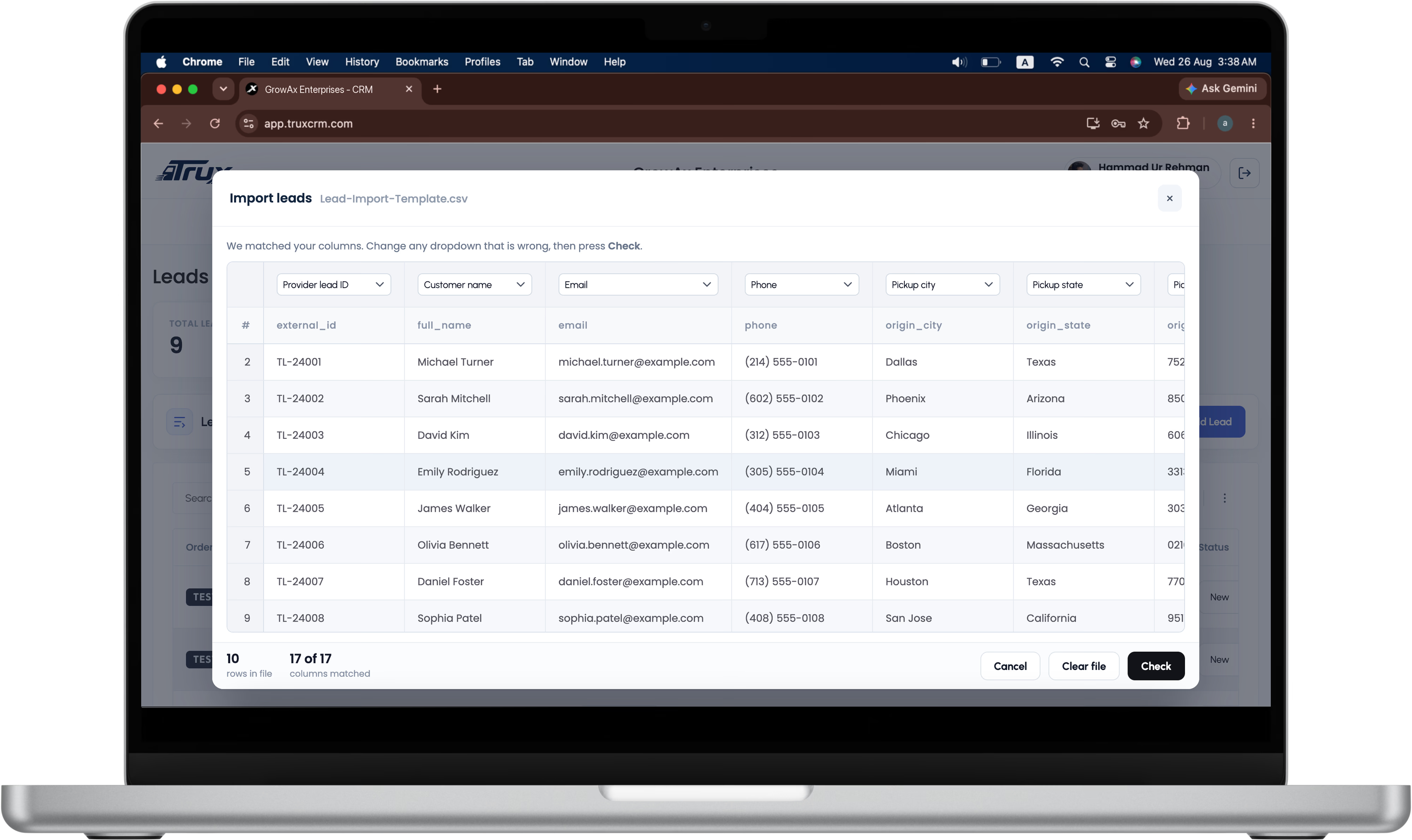
Use the column names in the table below and every one matches automatically. A sheet with its own headings works too: common names such as Customer Name, Phone Number, Pickup ZIP or Year are recognised on their own, and columns you do not need are simply skipped. An export from another CRM rarely needs reworking first.
A row is skipped when its ID, email or phone matches an earlier row in the same file, or its email or phone matches a lead already in your Leads list. Your own ID is also checked against every lead and quote you hold. Nothing that already exists is merged into or overwritten, and the note says what it matched — Same email as row 3.
The CRM keeps everything it can and tells you what it set aside. An invalid email is dropped and the lead still imports on its phone number. A ZIP with no city or state fills them in. An unknown vehicle type is left empty and reported in the preview, not used to reject the row.
Every imported lead receives a TruxCRM Lead ID that carries through to its quote and order. The ID from your old system or your lead provider is kept alongside it for reference, so a lead can always be traced back to the list it came from.
Imported leads arrive unassigned, so the list goes to the team the way you decide rather than to whoever opens it first.
Select as many leads as you like in the Leads list and assign them to an agent in one action. A batch of fifty leads for the agent who covers the South is one selection, not fifty edits.
Select the leads and auto-assign them evenly, and TruxCRM shares them across your agents in equal numbers. Nobody gets the whole list, nobody is left with none, and each agent sees their share in their own portal straight away.
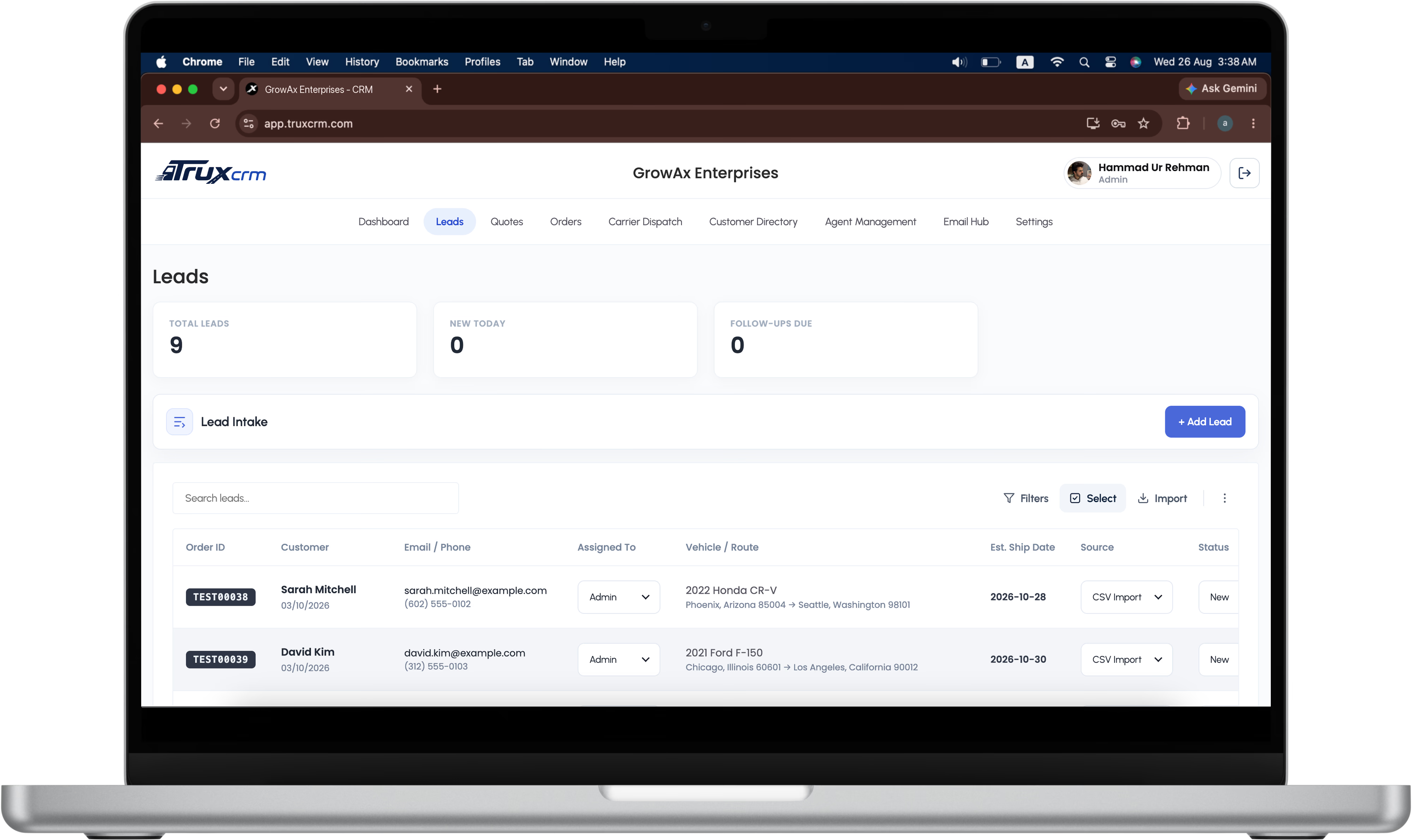
Selecting and assigning works on any lead in the list, wherever it came from — an import, a website form or a lead provider.
Filter the Leads list down to the leads you need and export the result to a CSV that opens in Excel or Google Sheets. The file holds what the filter shows, so a report or a hand-off is one click from the list itself rather than an afternoon of copying rows.
Only company admins can export. Agents work the leads assigned to them but cannot download the lead list, so the whole book never leaves in a spreadsheet with someone who is moving on. It is the same company-scoped access the rest of TruxCRM runs on; the security page has the detail.
Row 1 holds the column names and every row after it is one lead. Leave a cell empty when you do not have the detail. Only two things are required: the customer's name, and an email or a phone number. Want a head start? Download the CSV template, which has every column below and ten example leads that pass every check. Delete the examples before adding your own.
| Column | Needed | What to enter | Example |
|---|---|---|---|
external_id | Recommended | Your own ID for the lead, or your provider's. Stops the same lead being imported twice. | TL-24001 |
full_name | Required | The customer's full name. first_name and last_name columns work instead. | Michael Turner |
email | Email or phone | One email address. | michael.turner@example.com |
phone | Email or phone | One phone number with at least 7 digits, in any format. | (214) 555-0101 |
origin_city | Optional | Pickup city. | Dallas |
origin_state | Optional | Pickup state, written in full. | Texas |
origin_postal_code | Recommended | 5-digit pickup ZIP. Fills in the city and state when those are empty. | 75201 |
destination_city | Optional | Delivery city. | Miami |
destination_state | Optional | Delivery state, written in full. | Florida |
destination_postal_code | Recommended | 5-digit delivery ZIP. Fills the city and state the same way. | 33131 |
vehicle_year | Optional | Model year, 4 digits. | 2020 |
vehicle_make | Optional | Manufacturer. | Toyota |
vehicle_model | Optional | Model name. | Camry |
vehicle_type | Optional | One of the vehicle types listed below. | Sedan |
transport_type | Optional | Open Transport or Enclosed Transport. Empty means open. | Open Transport |
ship_date | Optional | First date the vehicle is ready, as YYYY-MM-DD. | 2026-10-26 |
notes | Optional | Anything your agents should know. | Runs and drives. |
| Instead of | Write | Why |
|---|---|---|
| TX | Texas | States are stored as full names across the CRM, on quotes and orders too. |
| 2108 | 02108 | Excel strips the leading zero from a number cell. Format ZIP columns as Text. |
| Oct 26 | 2026-10-26 | A date with no year cannot be read and is left empty. MM/DD/YYYY is read too. |
| Truck | Pickup | Only the listed vehicle types are kept. |
| A totals row at the bottom | Delete it | Every row is read as a lead, so it would show up as a problem row. |
Vehicle types, in any upper or lower case: Sedan, SUV, Pickup, Coupe, Convertible, Hatchback, Wagon, Van, Minivan, Motorcycle, Boat, RV, Heavy Equipment, Other. Transport type: anything containing “enclosed” becomes Enclosed Transport; everything else, including an empty cell, is Open Transport. One customer per row: for a customer shipping two vehicles, put the first in the vehicle columns and the second in notes.
Keep your working copy in any format you like and save a CSV copy for importing. In Excel: File → Save As → CSV UTF-8 (Comma delimited), and confirm the warning about features being lost; that is expected for CSV. In Google Sheets: File → Download → Comma-separated values. Sheets downloads only the tab you are viewing, so keep every lead on one tab.
| Status | Meaning |
|---|---|
| Will import | The row is valid and becomes a new lead. A note may say a detail was set aside, such as an unknown vehicle type. |
| Duplicate | The lead already exists, so it is skipped and never merged or overwritten. The note says what it matched. |
| Problem | The row cannot be imported, usually because it has no name, or neither a valid email nor a valid phone. Fix the cell and import the file again. |
| Next import | A valid row held for the next round of a large list. Import the same file again: the rows already in show as Duplicate and the rest go in. Nothing is lost, and there is no need to split the file. |
Yes. Export the leads from your current system as a CSV and import that file. Common column headings are recognised on their own, any column the CRM cannot match is shown to you so you can pick the right field, and columns you do not need are skipped. Put your old system's lead ID in the external_id column and it is kept on each lead for reference.
Company admins only. Agents work the leads assigned to them, and the lead list as a whole stays with the people who run the company.
They are left alone. A row whose email or phone matches a lead already in your Leads list, or whose ID matches a lead or quote you hold, is marked Duplicate and skipped. Import never merges into or overwrites an existing record.
Yes. Undo import, on the same screen, removes exactly the leads that import created and nothing else. And because every row is checked and shown to you before anything saves, most mistakes are caught before you click import at all.
They arrive as New and unassigned. Select the ones you want in the Leads list and assign them to an agent in one action, or auto-assign them evenly to share them across your agents in equal numbers.
Yes, if you are an admin. Filter the Leads list to what you need and export it to CSV, which opens in Excel and Google Sheets. The file contains the leads your filter shows.
No. Import, bulk assignment and export are part of the one TruxCRM plan, with no per-lead fee. The pricing page has the full plan.
Already a customer? Leads → Import. Not yet? Book a free demo Ask a question
Import covers the leads you already have. For the ones still to come, see lead capture forms for your website and the lead provider API for the leads you buy. When a lead books, the order is posted to Central Dispatch from TruxCRM, an official Central Dispatch partner; the rest of the platform is on the features page.